How to Export Video for Web
You’ve finished your video. You export an MP4, drop it on your site, and wonder why the page takes eight seconds to load and the video plays a beat late. The problem isn’t your internet — it’s that video export presets designed for YouTube, Vimeo, or local playback are completely wrong for the web. This guide covers everything: the right formats, the target file sizes, the settings that matter, and the exact HTML you need.
Why “just export an MP4” isn’t enough
When you export from Premiere, Final Cut, or DaVinci, the default presets optimize for quality preservation — not web delivery. A typical “high quality H.264” export at 1080p for a 60-second clip lands somewhere between 150MB and 400MB. On a website, that file has to be downloaded before it plays. At a median home broadband speed, that’s 10–25 seconds of waiting. Most visitors leave in three.
Beyond file size, there are two other problems: the video starts playing from the wrong position (the moov atom — the index — is at the end of the file, so the browser has to download the whole thing before it can start), and there’s no poster image, so the video area is a blank rectangle during load, causing layout shift.
Web-optimized video means: small file, correct container metadata, right codec, and a poster frame. Here’s how to get there.
The two formats you need: WebM and MP4
The web has settled on two formats that, together, cover every browser in active use:
- WebM (VP9 codec) — Chrome, Firefox, Edge, and Safari 16+ (2022). Better compression than H.264: the same perceived quality at 30–50% smaller file size.
- MP4 (H.264 codec, faststart) — 100% browser support, including older Safari. Your fallback.
You serve both using the <source> element inside <video>. The browser picks the first format it can play. Most visitors get the smaller WebM; everyone else gets the MP4.
Target file sizes
| Use case | Duration | Target size |
|---|---|---|
| Background loop / hero | 5–30 seconds | < 5 MB |
| Product demo / screen recording | 30–90 seconds | < 12 MB |
| Tutorial or explainer | 2–5 minutes | < 40 MB |
| Long-form (courses, interviews) | 5+ minutes | Use a video host (Vimeo, Cloudflare Stream) |
What compression settings actually matter
Resolution
1080p (1920×1080) is fine for nearly everything. Going to 4K roughly quadruples the file size with no perceptible benefit on a screen. If your source is 4K, scale to 1080p on export.
Bitrate
This is the biggest lever. For screen recordings and UI demos, 800–1500 kbps for VP9 and 1200–2000 kbps for H.264 gives excellent results. For camera footage with motion, push to 2000–3000 kbps. Anything above that is wasted on web delivery.
faststart / moov atom position
For MP4 specifically, you must set -movflags +faststart (in ffmpeg) or equivalent. This moves the moov atom to the front of the file so the browser can start playing before the full download completes. Without it, your MP4 won’t start playing until it’s fully downloaded. This is a silent, common mistake.
The poster frame
The poster attribute on a <video> element specifies an image to show before the video loads. Without it, the video area renders as a blank box — which causes Cumulative Layout Shift (CLS) if the element resizes when the video metadata loads, and looks broken to users on slow connections.
The best poster format is WebP: it’s 25–40% smaller than JPEG at equivalent quality, and every modern browser supports it. The ideal poster is the first frame of the video — it sets accurate expectations and the transition to playback is seamless.
The correct HTML
For an autoplaying background loop:
<video
  autoplay muted loop playsinline
  poster="video-poster.webp"
  width="1280" height="720"
>
  <source src="video.webm" type="video/webm" />
  <source src="video.mp4" type="video/mp4" />
</video>
For a click-to-play player (product demos, explainers):
<video
  controls playsinline
  poster="demo-poster.webp"
  width="1280" height="720"
>
  <source src="demo.webm" type="video/webm" />
  <source src="demo.mp4" type="video/mp4" />
</video>
The one-step shortcut
If you’re doing this manually with ffmpeg, you’re running two separate encode commands, fishing for the right flags, and then separately extracting the first frame and converting it to WebP. That’s a 15-minute process every time you update a video.
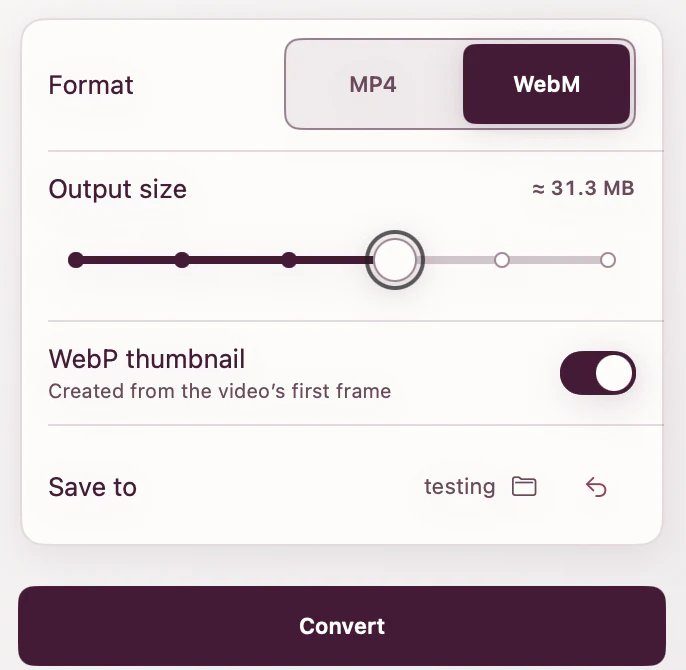
ExportForWeb converts the same source to a web-ready .webm or .mp4, with an optional .webp poster from the first frame. Run the source once for each video format you need. Native macOS, no uploads, no accounts.
[ ABOUT EXPORTFORWEB ]
Quick product questions
Is ExportForWeb free?
Yes. ExportForWeb is a free download on the Mac App Store, and every conversion feature is free to use, with no subscription or paid tier.
Do my files leave my Mac?
No. Conversion happens entirely on your Mac. Your source media and finished exports are never uploaded to us or sent to a cloud conversion service.
What can I export?
Videos become WebM or MP4, with an optional first-frame WebP poster. JPEG, PNG, HEIC, HEIF, TIFF, BMP, and WebP images become WebP.
[ FREE & PRIVATE ]
Stop wrestling with video formats.
ExportForWeb converts videos to WebM or MP4 with an optional WebP poster — and turns still images into WebP too. Every feature is free, with no subscription or paid tier. Conversion stays on your Mac, so your media is never uploaded.
Download free