How to Convert HEIC to WebP on Mac
HEIC is a common way for iPhones and other Apple devices to store efficient photos. It is convenient inside the Apple ecosystem, but WebP is a more practical delivery format for a website. ExportForWeb converts HEIC to WebP locally on your Mac and handles the photo’s stored orientation.
Why convert HEIC for the web?
A HEIC photo may look correct in Photos or Finder while remaining awkward in publishing tools, asset pipelines, or browsers. Converting it to WebP creates a file intended for the web without routing private photos through an online converter.
This is useful for iPhone product photography, event photos, team portraits, location images, and quick content captured on a phone before publishing.
How to convert HEIC to WebP on Mac
- Make sure the HEIC file is fully downloaded to the Mac rather than remaining an iCloud placeholder.
- Open ExportForWeb and choose a destination folder.
- Drop in one HEIC photo or select a batch.
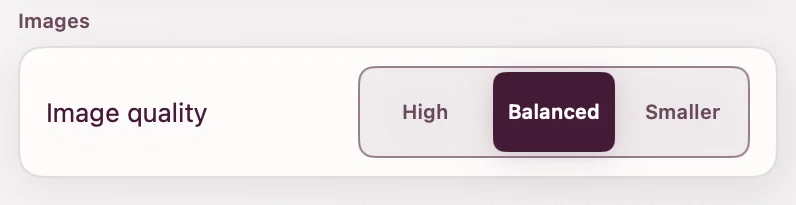
- Choose the WebP quality. Start with Balanced and compare Smaller when page weight matters more.
- Run the conversion, then reveal the WebP files in Finder.
The original HEIC remains unchanged. Orientation metadata is handled so portrait and landscape photos arrive the right way up in the WebP.
Review more than file size
Phone photos can contain fine hair, foliage, fabric, gradients, low-light noise, and computational sharpening. Those details respond differently to compression. Compare the output at the size it will appear on the site and inspect:
- faces and natural skin texture;
- smooth skies and studio backdrops;
- small product labels;
- hair, leaves, and other high-frequency detail;
- shadow areas in low-light photographs.
| File | Recommended role |
|---|---|
| HEIC original | Archive and Apple photo workflow |
| WebP export | Website delivery |
WebP is a delivery copy
WebP supports adjustable lossy and lossless compression and is natively supported in major browsers. Google’s WebP overview describes the format’s compression modes and transparency support.
Keep the HEIC even after the WebP is published. It may contain more useful source information for future edits, and it lets you create another delivery size later without re-encoding the already compressed WebP.
Check cloud status first. If Finder or Photos only shows a lightweight placeholder, wait for the original to download before conversion. An unavailable source cannot be processed locally.
Use the WebP on a page
<img
  src="workshop-team.webp"
  alt="The workshop team standing beside a finished installation"
  width="1600"
  height="1067"
  loading="lazy"
  decoding="async"
/>
Write alt text for the information the image contributes, not for its filename or format. Include dimensions so the page can reserve the right amount of space before the file arrives.
Batch a set of iPhone photos
When a project has many HEIC images, gather the selected originals, choose one destination, and convert them together. Review a representative mix—a bright outdoor frame, a low-light frame, a portrait, and a detailed product shot—before publishing the entire set.
If one outlier needs special treatment, preserve it and process the remainder as the batch. Consistency is useful, but it should not override a visible quality problem.
HEIC to WebP questions
Will portrait photos rotate incorrectly?
ExportForWeb handles image orientation during conversion. Still review the completed batch before uploading it to the site.
Does conversion remove the HEIC?
No. The WebP is a new file written to your destination folder; the source is unchanged.
Do I have to upload my photos?
No. The app converts HEIC files locally on the Mac, without an account or cloud conversion step.
[ ABOUT EXPORTFORWEB ]
Quick product questions
Is ExportForWeb free?
Yes. ExportForWeb is a free download on the Mac App Store, and every conversion feature is free to use, with no subscription or paid tier.
Do my files leave my Mac?
No. Conversion happens entirely on your Mac. Your source media and finished exports are never uploaded to us or sent to a cloud conversion service.
What can I export?
Videos become WebM or MP4, with an optional first-frame WebP poster. JPEG, PNG, HEIC, HEIF, TIFF, BMP, and WebP images become WebP.
[ FREE & PRIVATE ]
Make the next export web-ready—privately, for free.
Every feature is free, with no subscription or paid tier. Conversion stays on your Mac, so your media is never uploaded and no account is required.
Download free