How to Convert JPG to WebP on Mac
JPEG is still everywhere: cameras, stock libraries, image editors, and CMS exports all produce it. WebP gives you another delivery option with adjustable lossy compression designed for the web. ExportForWeb converts JPG or JPEG files to WebP in batches, locally on your Mac.
JPG and JPEG mean the same thing here
.jpg and .jpeg are extensions for the same image format. The shorter spelling came from older filename limits; it does not represent a different compression method. This guide—and ExportForWeb—covers both.
How to convert JPG to WebP
- Open ExportForWeb and choose a destination folder.
- Drop in a JPG, JPEG, or a whole folder’s worth of selected images.
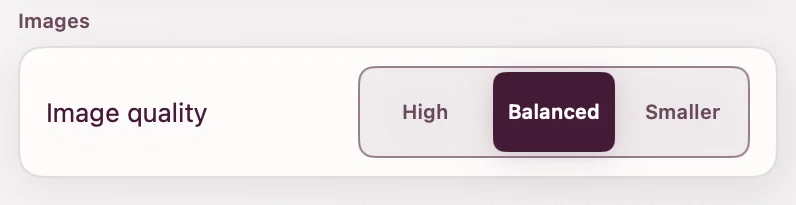
- Choose the WebP quality appropriate for the page. Start with Balanced; use Smaller when transfer weight is the stronger constraint.
- Run the conversion.
- Reveal the completed WebP files in Finder and compare them with the originals.
ExportForWeb writes new .webp files and leaves every source JPEG unchanged. Processing is local, which is especially useful for client photography or unreleased product images.
Choose quality by use, not habit
A full-width editorial photograph and a 160-pixel avatar do not need the same treatment. Judge the export at its intended CSS size:
| Image role | What to inspect |
|---|---|
| Hero photograph | Skin, gradients, fine texture |
| Product card | Edges, labels, brand colors |
| Thumbnail | Readability at small size |
| Background image | Banding and visible blocks |
If Balanced looks identical in context, test Smaller. If fine texture becomes distracting, return to Balanced. A useful optimization preserves the viewer’s attention; it does not call attention to compression.
Why WebP?
WebP supports lossy and lossless compression and is built for photographic, graphical, and transparent web images. Google’s WebP overview documents those modes and current native support across major browsers.
Do not assume every conversion must be smaller. Google’s WebP FAQ notes that an output can grow when the requested quality is higher than the already-compressed source. Compare actual files rather than relying on the extension alone.
Start with the best available original. If a camera RAW or clean editing master exists, export from that workflow when practical. Converting a low-quality JPEG to WebP cannot reconstruct discarded detail.
Use the WebP in HTML
<img
  src="studio-portrait.webp"
  alt="Portrait of the studio team"
  width="1200"
  height="800"
  loading="lazy"
  decoding="async"
/>
Keep meaningful alternative text, include intrinsic dimensions, and avoid lazy-loading an image that is likely to be the page’s primary above-the-fold visual.
Should you keep the JPEG?
Yes. Keep the original as an archive and for any system that specifically requires JPEG. The WebP is the website delivery asset. If your audience includes a constrained legacy environment, you can also use the HTML <picture> element to provide both:
<picture>
  <source srcset="studio-portrait.webp" type="image/webp" />
  <img src="studio-portrait.jpg" alt="Portrait of the studio team" width="1200" height="800" />
</picture>
Common JPG to WebP mistakes
- Converting an image without first resizing it to sensible delivery dimensions.
- Choosing the highest quality automatically and receiving a larger output.
- Deleting the original before checking the result in context.
- Ignoring descriptive alt text because the format changed.
JPG to WebP questions
Does WebP improve a blurry JPEG?
No. Conversion changes the delivery format, not the underlying focus or captured detail.
Can I convert JPG files as a batch?
Yes. Add multiple images, choose one quality setting, and export them to the destination folder.
Are my photos uploaded?
No. ExportForWeb reads and writes the images locally on your Mac.
[ ABOUT EXPORTFORWEB ]
Quick product questions
Is ExportForWeb free?
Yes. ExportForWeb is a free download on the Mac App Store, and every conversion feature is free to use, with no subscription or paid tier.
Do my files leave my Mac?
No. Conversion happens entirely on your Mac. Your source media and finished exports are never uploaded to us or sent to a cloud conversion service.
What can I export?
Videos become WebM or MP4, with an optional first-frame WebP poster. JPEG, PNG, HEIC, HEIF, TIFF, BMP, and WebP images become WebP.
[ FREE & PRIVATE ]
Make the next export web-ready—privately, for free.
Every feature is free, with no subscription or paid tier. Conversion stays on your Mac, so your media is never uploaded and no account is required.
Download free