How to Optimize WebP Images on Mac
A WebP extension is not proof that an image is finished. The file may have been exported at unnecessarily high quality, inherited oversized dimensions, or come from a generic preset. ExportForWeb can re-encode existing WebP images at a practical quality setting, in a local batch workflow.
When a WebP still needs optimization
Revisit a WebP when it is one of the largest page assets, when a CMS or design tool produced it with unknown settings, or when a batch of visually similar images varies wildly in file size.
Do not optimize a file solely because a generic audit labels it “large.” First check how it is used. A full-bleed editorial photograph has a different job from a 240-pixel card thumbnail.
How to optimize WebP on Mac
- Keep a copy of the current WebP or retain the original source asset.
- Open ExportForWeb and choose a separate destination folder for the test.
- Drop in one WebP or a batch.
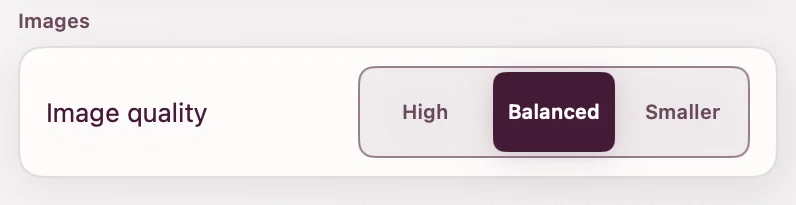
- Choose Balanced for a first comparison or Smaller when the existing files are clearly over budget.
- Run the conversion.
- Compare dimensions, file size, and visible quality before replacing anything on the site.
The input remains unchanged. A separate destination makes comparison and rollback straightforward.
Re-encoding is not magic
A lossy file has already discarded information. Re-encoding it cannot reconstruct the original, and an unnecessarily aggressive second encode can introduce more artifacts. Use the best source available whenever you can.
Google’s WebP FAQ also explains that a WebP can become larger when it is encoded at a higher quality than its source. That is why optimization needs a before-and-after check rather than a promise based on format alone.
| Check | Question |
|---|---|
| Dimensions | Is the image larger than its maximum rendered size? |
| File size | Did the new export actually reduce transfer weight? |
| Visible quality | Do edges, gradients, and texture still look natural? |
| Transparency | Do soft edges work on the page background? |
Optimize dimensions before compression
If an image is displayed at 800 pixels wide but stored at 3200 pixels, a quality change alone is solving only part of the problem. Resize it appropriately in your source workflow, then use ExportForWeb for the WebP delivery encode.
Keep higher-resolution versions when the same asset appears in a zoom view, a high-density source set, or a full-screen gallery. Optimization should follow the actual responsive-image plan.
Compare on the real page. The surrounding color, rendered dimensions, display density, and adjacent typography all affect what a visitor notices. Finder previews are useful, but they are not the final context.
Use responsive WebP sources
When one image spans several layout sizes, create intentionally sized variants and let the browser choose:
<img
  src="workspace-960.webp"
  srcset="
    workspace-640.webp 640w,
    workspace-960.webp 960w,
    workspace-1440.webp 1440w
  "
  sizes="(max-width: 720px) 100vw, 960px"
  alt="A video export open beside the finished website"
  width="1440"
  height="960"
  loading="lazy"
/>
This avoids sending the largest version to every viewport. Each variant should still be reviewed after encoding.
What to inspect by image type
- Photographs: skin, hair, foliage, shadow noise, and skies.
- Screenshots: small type, one-pixel rules, and cursor edges.
- Transparent assets: shadows and antialiasing on light and dark surfaces.
- Illustrations: gradients and boundaries between flat colors.
WebP optimization questions
Can re-optimizing WebP make it larger?
Yes. A higher target quality, different color behavior, or an already efficient source can produce a larger result. Keep the smaller acceptable file, not simply the newest one.
Will transparency be preserved?
ExportForWeb handles transparency when converting still images to WebP. Inspect semi-transparent edges against the real background.
Can I optimize a batch?
Yes. Add multiple WebP files and process them locally with the chosen quality preference.
[ ABOUT EXPORTFORWEB ]
Quick product questions
Is ExportForWeb free?
Yes. ExportForWeb is a free download on the Mac App Store, and every conversion feature is free to use, with no subscription or paid tier.
Do my files leave my Mac?
No. Conversion happens entirely on your Mac. Your source media and finished exports are never uploaded to us or sent to a cloud conversion service.
What can I export?
Videos become WebM or MP4, with an optional first-frame WebP poster. JPEG, PNG, HEIC, HEIF, TIFF, BMP, and WebP images become WebP.
[ FREE & PRIVATE ]
Make the next export web-ready—privately, for free.
Every feature is free, with no subscription or paid tier. Conversion stays on your Mac, so your media is never uploaded and no account is required.
Download free