How to Convert MOV to MP4 on Mac
A MOV can hold beautiful, edit-friendly video—and far more data than a website should ask a visitor to download. Converting MOV to MP4 creates a predictable H.264 delivery file with faststart, ready for browser playback and compatible sharing. ExportForWeb handles the conversion locally on macOS.
MOV and MP4 are containers
The extension does not tell the whole story. A MOV might contain ProRes, H.264, HEVC, or another codec. An MP4 can also contain different codecs. ExportForWeb’s MP4 output is intentionally specific: H.264 for compatibility, with faststart for progressive web playback.
That makes the result appropriate for landing pages, product demonstrations, portfolio clips, and direct downloads. Keep the MOV as the master you return to for editing; use the MP4 as a delivery copy.
How to convert MOV to MP4 on Mac
- Open ExportForWeb and select a destination folder on your Mac.
- Drop the MOV into the app. Add more files if you want to run a batch.
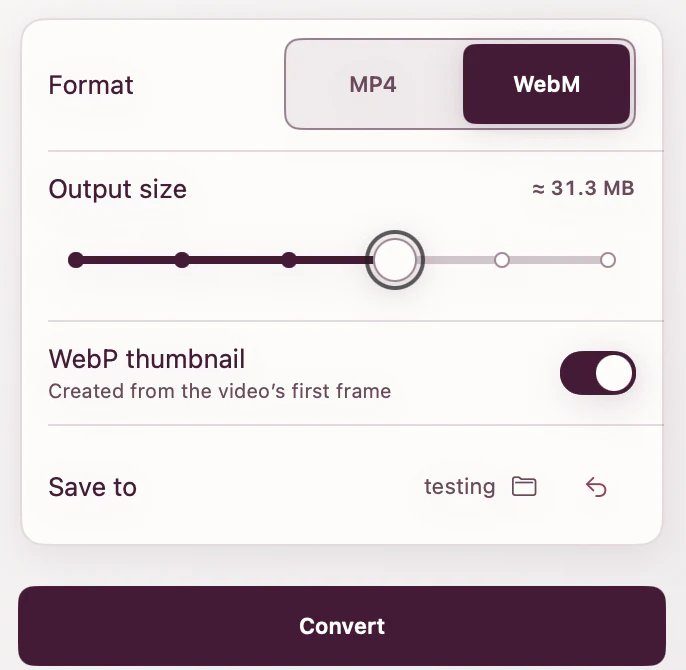
- Choose MP4 as the video format.
- Enable a WebP first-frame poster if this video will be embedded on a page.
- Start the conversion.
- Use the Finder action in the completed result to locate the MP4 and poster.
The original MOV remains unchanged. No account or upload is involved.
Why faststart matters
An MP4 includes metadata that tells a player how the media is organized. If that information sits at the end of the file, a browser may need much more of the download before playback can begin. Faststart puts the necessary metadata near the front.
This does not make the encoded frames smaller, but it makes the file behave like web media rather than a local-only export. ExportForWeb applies faststart to its H.264 MP4 output automatically.
Prepare the MOV before conversion
- Trim dead time. Remove countdowns, slate frames, and unused tails.
- Use the clean source. Repeated lossy conversion can compound artifacts.
- Check the first frame. It becomes the optional WebP poster.
- Match the page. A small card rarely needs a 4K delivery file.
These decisions often save more than chasing an aggressive quality setting after the edit is complete.
| Asset | Purpose | Keep? |
|---|---|---|
| MOV master | Editing and archive | Yes |
| MP4 export | Compatible delivery | Yes |
| WebP poster | Initial page state | When embedding |
Embed the MP4 correctly
<video
  controls
  playsinline
  preload="metadata"
  poster="tour-poster.webp"
  width="1280"
  height="720"
>
  <source src="tour.mp4" type="video/mp4" />
  <a href="tour.mp4">Download the product tour</a>
</video>
The poster appears while video data is unavailable, as described in the MDN poster reference. Explicit width and height reserve the player’s aspect ratio before metadata arrives.
Should you also make a WebM?
For a public website, usually yes. The MP4 is the dependable fallback; a VP9 WebM can be listed first as an efficient alternative. Export the same clean MOV once to each format rather than using one delivery file as the source for the other.
<video playsinline poster="tour-poster.webp">
  <source src="tour.webm" type="video/webm" />
  <source src="tour.mp4" type="video/mp4" />
</video>
A smaller file is not automatically a better file. Inspect text, motion, gradients, and audio, then choose the result that meets the page’s needs without visible distraction.
MOV to MP4 questions
Can I convert several MOV files together?
Yes. Add a batch and ExportForWeb will process the videos into the selected destination folder.
Does the conversion happen online?
No. Your MOV and the MP4 export stay on your Mac throughout the conversion.
Why not upload the MOV directly?
A MOV may use a production-oriented codec, carry a large bitrate, or behave inconsistently as direct web media. A known H.264 MP4 output is a safer delivery asset.
[ ABOUT EXPORTFORWEB ]
Quick product questions
Is ExportForWeb free?
Yes. ExportForWeb is a free download on the Mac App Store, and every conversion feature is free to use, with no subscription or paid tier.
Do my files leave my Mac?
No. Conversion happens entirely on your Mac. Your source media and finished exports are never uploaded to us or sent to a cloud conversion service.
What can I export?
Videos become WebM or MP4, with an optional first-frame WebP poster. JPEG, PNG, HEIC, HEIF, TIFF, BMP, and WebP images become WebP.
[ FREE & PRIVATE ]
Make the next export web-ready—privately, for free.
Every feature is free, with no subscription or paid tier. Conversion stays on your Mac, so your media is never uploaded and no account is required.
Download free