How to Convert WebM to MP4 on Mac
WebM is well suited to the open web, but an MP4 copy is still useful when you need a conservative fallback, a file for another app, or a format a client explicitly requests. ExportForWeb converts WebM to H.264 MP4 with faststart, entirely on your Mac.
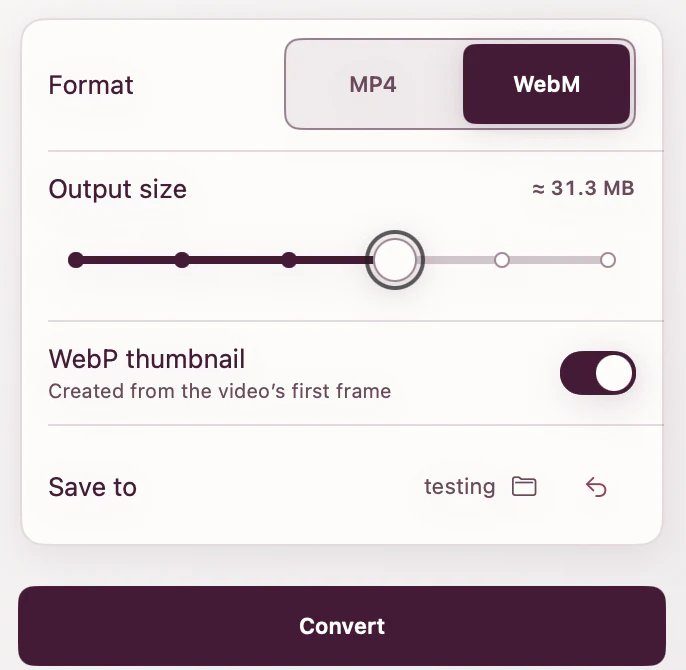
The practical reason to make an MP4
For websites, this is usually not an either-or decision. Keep the WebM as the first source and create the MP4 as the second. The browser can use the WebM where supported and fall back to MP4 when necessary.
An MP4 is also easier to hand to presentation software, messaging tools, and workflows that do not accept WebM. One conversion can therefore solve both compatibility and web fallback needs.
How to convert WebM to MP4 with ExportForWeb
- Open ExportForWeb and choose the destination folder.
- Drop in the WebM file or a batch of WebM files.
- Select MP4 as the video output.
- Choose whether to create an optional WebP poster from the first frame.
- Start the export and reveal the completed MP4 in Finder.
The MP4 uses H.264 and is prepared with faststart. Faststart places the playback metadata where a browser can find it without waiting for the entire file to arrive.
Keep the WebM after conversion
Converting to MP4 does not make the WebM obsolete. Each file has a clear role:
| File | Role on a website |
|---|---|
demo.webm | Efficient first source |
demo.mp4 | Compatible fallback |
demo-poster.webp | Still image before playback |
This three-file package is useful because the HTML remains simple while each asset has one job.
Use both sources in HTML
Browsers try nested <source> elements in order. The MDN video reference shows WebM and MP4 together and explains that the next source is attempted when an earlier format cannot be used.
<video
  controls
  playsinline
  preload="metadata"
  poster="walkthrough-poster.webp"
>
  <source src="walkthrough.webm" type="video/webm" />
  <source src="walkthrough.mp4" type="video/mp4" />
  <a href="walkthrough.mp4">Download the walkthrough</a>
</video>
Include the type attribute. It helps a browser decide whether it understands a source without first downloading enough of the file to inspect it.
Understand the re-encode
WebM and MP4 are containers, and this conversion changes the encoded video to H.264. It is not a lossless repackaging operation. If the WebM has already been heavily compressed, the MP4 cannot restore detail that is no longer present.
Use the highest-quality WebM you have, then review the MP4 at normal playback speed. Pay special attention to small text, gradients, fast movement, and areas with subtle texture.
If the original master still exists, use it. Creating both WebM and MP4 from the clean source normally gives each encoder better material than converting one delivery file into the other.
When a single MP4 is enough
A single MP4 may be a reasonable choice for a download, an email attachment, a prototype shared with a small group, or a system that only accepts MP4. For a public website where transfer size matters, keeping WebM first and MP4 second is the more flexible setup.
WebM to MP4 questions
What does faststart do?
It moves important MP4 metadata toward the beginning of the file so playback can begin progressively rather than depending on a complete download.
Will converting WebM to MP4 make it smaller?
Not necessarily. Size depends on the source and the new encode. The goal of this conversion is compatibility; retain the WebM when efficiency is the priority.
Can I create a poster at the same time?
Yes. ExportForWeb can save the video’s first frame as an optional WebP poster alongside the MP4.
[ ABOUT EXPORTFORWEB ]
Quick product questions
Is ExportForWeb free?
Yes. ExportForWeb is a free download on the Mac App Store, and every conversion feature is free to use, with no subscription or paid tier.
Do my files leave my Mac?
No. Conversion happens entirely on your Mac. Your source media and finished exports are never uploaded to us or sent to a cloud conversion service.
What can I export?
Videos become WebM or MP4, with an optional first-frame WebP poster. JPEG, PNG, HEIC, HEIF, TIFF, BMP, and WebP images become WebP.
[ FREE & PRIVATE ]
Make the next export web-ready—privately, for free.
Every feature is free, with no subscription or paid tier. Conversion stays on your Mac, so your media is never uploaded and no account is required.
Download free