How to Compress Video for the Web on Mac
A website video should earn the bytes it asks a visitor to download. Export presets made for editing, archiving, or video platforms often produce files that are needlessly heavy for direct page delivery. ExportForWeb turns a local source into WebM or MP4—and can create a WebP poster in the same workflow.
Compression starts before the export
A compressor cannot make every creative decision for you. Before adding the file, remove anything the visitor does not need:
- trim slate frames and quiet lead-ins;
- shorten loops so they return naturally;
- crop unused canvas around screen recordings;
- export at a resolution appropriate to the largest rendered size;
- remove audio when a decorative loop will always be muted.
Duration and pixel count are powerful levers because discarded seconds and pixels never need to be encoded or downloaded.
How to compress a video with ExportForWeb
- Prepare the clean, trimmed source video.
- Open ExportForWeb and select a local destination folder.
- Drop in the video. Supported inputs include MOV, MP4, M4V, MKV, WebM, AVI, MPEG, MXF, and common camera formats.
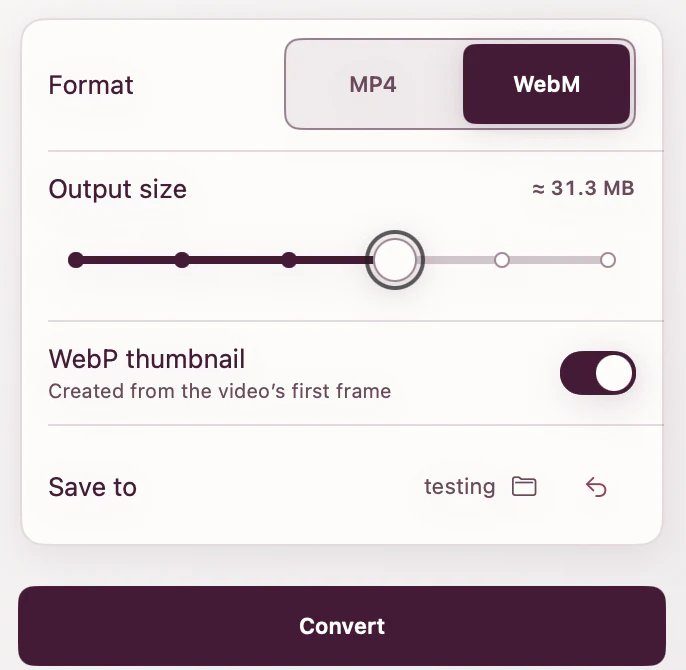
- Choose WebM when the smallest practical web delivery file is the priority, or MP4 for an H.264-compatible fallback.
- Enable the optional first-frame WebP poster.
- Run the export and inspect the result in Finder and in the page.
All work happens on your Mac. The source is never replaced, so you can compare outputs safely.
Choose the output by its job
| Output | Use it for | ExportForWeb creates |
|---|---|---|
| WebM | Efficient first source | VP9 video |
| MP4 | Compatible fallback | H.264 with faststart |
| WebP | Poster before playback | Still from the first frame |
For a public marketing page, the strongest package is usually all three. Run the clean source once for WebM and once for MP4, enabling the poster on one of those exports.
There is no universal target size
Two videos with the same dimensions and duration can compress very differently. A static software interface has large areas that barely change; handheld water, confetti, film grain, and foliage change across much of every frame.
Evaluate size in relation to purpose. A short decorative loop belongs under a stricter budget than a click-to-play tutorial. If a longer video remains large after sensible preparation, a streaming host with adaptive delivery may be more appropriate than serving one file directly.
Compression is a delivery decision. Keep the high-quality master. The smaller WebM and MP4 files are outputs for the current page, and you may want different exports for another placement later.
Build the browser player
The HTML <video> element supports multiple sources and a poster. MDN explains that browsers try the listed sources sequentially and use the first one they understand in its video element reference.
<video
  controls
  playsinline
  preload="metadata"
  poster="overview-poster.webp"
  width="1280"
  height="720"
>
  <source src="overview.webm" type="video/webm" />
  <source src="overview.mp4" type="video/mp4" />
  <a href="overview.mp4">Download the overview</a>
</video>
For a below-the-fold player, consider preload="none". For a normal click-to-play player near the main content, metadata is a reasonable hint. Browsers retain control over how they honor that hint.
Review the right failure points
- Screen recordings: watch small text and thin cursor shapes.
- Camera footage: inspect faces, hair, motion, and shadow noise.
- Gradients: look for banding in skies and soft backgrounds.
- Loops: watch the return from final frame to first.
- Posters: make sure the first frame is useful rather than black.
Video compression questions
Which output is smaller, WebM or MP4?
ExportForWeb recommends WebM when the smallest practical file is the priority, but actual results depend on the video. MP4 remains valuable as the compatible fallback.
Does ExportForWeb accept batches?
Yes. You can add multiple videos and process them to the selected destination.
When should I use a streaming service?
Use one for long-form viewing, adaptive quality, analytics, protected content, or files that remain too large for responsible direct delivery.
[ ABOUT EXPORTFORWEB ]
Quick product questions
Is ExportForWeb free?
Yes. ExportForWeb is a free download on the Mac App Store, and every conversion feature is free to use, with no subscription or paid tier.
Do my files leave my Mac?
No. Conversion happens entirely on your Mac. Your source media and finished exports are never uploaded to us or sent to a cloud conversion service.
What can I export?
Videos become WebM or MP4, with an optional first-frame WebP poster. JPEG, PNG, HEIC, HEIF, TIFF, BMP, and WebP images become WebP.
[ FREE & PRIVATE ]
Make the next export web-ready—privately, for free.
Every feature is free, with no subscription or paid tier. Conversion stays on your Mac, so your media is never uploaded and no account is required.
Download free