How to Convert MOV to WebM on Mac
MOV files are common outputs from cameras, screen recorders, motion-design tools, and Apple editing apps. They are excellent working files, but they can be unnecessarily heavy for direct website delivery. ExportForWeb converts MOV to VP9 WebM locally on macOS, with an optional WebP poster for the page.
When MOV to WebM makes sense
A MOV is a QuickTime container. What sits inside can vary—from compact camera footage to a high-quality editing codec. That flexibility is useful during production, but a browser-facing file needs a more predictable delivery format.
Convert MOV to WebM when the source is destined for a landing-page hero, product walkthrough, case study, or short loop. Keep the MOV as your master. The WebM is a delivery copy made for the website, not a replacement for the file you may need to edit again.
How to convert MOV to WebM on Mac
- Finish editing and save the cleanest practical MOV source.
- Open ExportForWeb and select a local destination folder.
- Drop the MOV into the app. You can add several files for a batch.
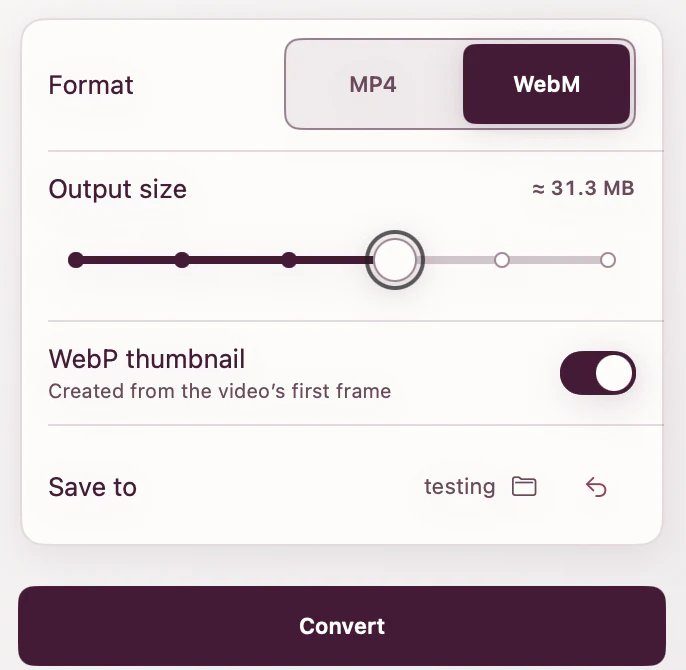
- Choose WebM as the output format.
- Turn on the optional WebP poster if you want the first frame exported as an image.
- Run the export and reveal the result in Finder when it completes.
The source remains where it was and is never changed. ExportForWeb reads it, creates the new web assets, and writes them to the folder you selected.
Start from the right MOV
If you have several versions, use the clean master rather than a MOV that has already been compressed repeatedly. Every lossy encode discards information. A clean source gives the VP9 encoder more useful detail and avoids amplifying artifacts from an earlier export.
Trim unused lead-in and tail frames before conversion. A visitor should not download three silent seconds that never need to appear. Likewise, export only at the dimensions the page requires. A 4K master can remain in your archive while the website receives a delivery-sized version.
| Keep the MOV for | Use the WebM for |
|---|---|
| Future editing | Direct browser playback |
| High-quality archive | Landing-page video |
| Color and finishing work | Portfolio and product clips |
Add a WebP poster
A poster is the still image shown while video data is unavailable. ExportForWeb can lift the first frame from the MOV and save it as WebP during the conversion. That makes the initial page state match the first moment of playback, without a separate screenshot workflow.
If the first frame is a fade from black or an editing slate, trim or revise the master first. The app deliberately uses the first frame; make that frame useful.
Serve WebM with an MP4 fallback
WebM with VP9 is a strong first source for modern browsers. MP4 with H.264 remains a dependable fallback. HTML lets you provide both, and the browser tries the sources in order. MDN’s guide to HTML video and audio recommends including the MIME type so unsupported sources can be skipped without probing the full file.
<video muted loop playsinline poster="feature-poster.webp">
  <source src="feature.webm" type="video/webm" />
  <source src="feature.mp4" type="video/mp4" />
</video>
If you only have the MOV today, create the WebM first, then make a separate MOV to MP4 export for the fallback.
What determines the finished size?
Duration, pixel dimensions, frame rate, visual noise, and motion all matter. A static interface recording generally compresses more easily than handheld foliage or film grain. There is no trustworthy universal promise that every MOV will shrink by the same percentage.
Use the page as the test. Compare the WebM at its real display size, on a normal connection, with the surrounding layout loaded. That is more useful than evaluating a frame at 400% zoom.
MOV to WebM questions
Will ExportForWeb delete or replace my MOV?
No. The original is unchanged. The WebM and optional poster are new files in your selected destination.
Can I convert camera MOV files?
ExportForWeb accepts MOV and common camera formats. If the file is stored in iCloud or another sync service, make sure it has finished downloading to your Mac before adding it.
Should I upload the MOV directly as a fallback?
For a conventional website player, create an MP4 fallback instead. MOV is better treated as the production source, while WebM and MP4 form the delivery pair.
[ ABOUT EXPORTFORWEB ]
Quick product questions
Is ExportForWeb free?
Yes. ExportForWeb is a free download on the Mac App Store, and every conversion feature is free to use, with no subscription or paid tier.
Do my files leave my Mac?
No. Conversion happens entirely on your Mac. Your source media and finished exports are never uploaded to us or sent to a cloud conversion service.
What can I export?
Videos become WebM or MP4, with an optional first-frame WebP poster. JPEG, PNG, HEIC, HEIF, TIFF, BMP, and WebP images become WebP.
[ FREE & PRIVATE ]
Make the next export web-ready—privately, for free.
Every feature is free, with no subscription or paid tier. Conversion stays on your Mac, so your media is never uploaded and no account is required.
Download free