How to Convert MP4 to WebM on Mac
MP4 is a dependable delivery format, but it does not have to be the only file your website serves. Converting an MP4 to WebM gives modern browsers a VP9-encoded alternative that can be lighter at a comparable visual quality. ExportForWeb does the conversion locally on your Mac, so the source never needs to leave your machine.
The short answer
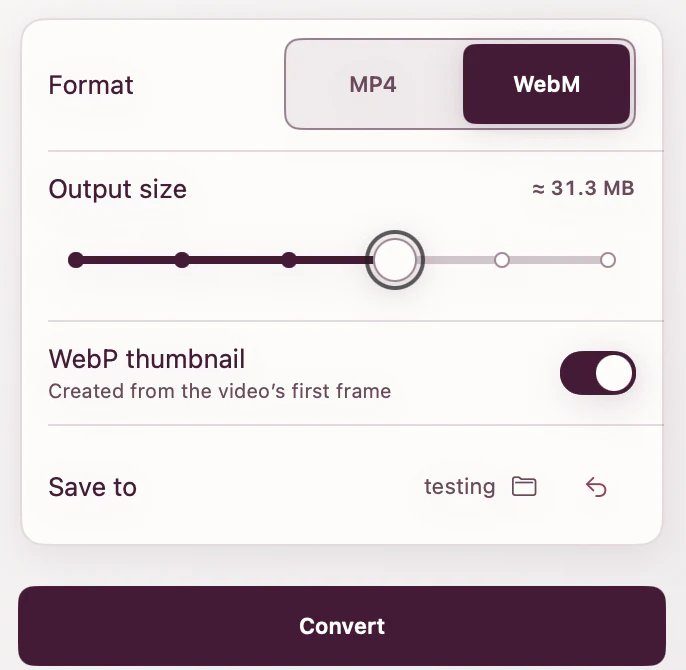
Drop the MP4 into ExportForWeb, choose WebM as the video output, select the destination folder, and export. Keep the original MP4: it remains useful as the second source in your HTML, while the new WebM can be listed first.
Why convert MP4 to WebM?
An .mp4 extension describes a container, not a single compression method. Web MP4 files commonly carry H.264 video. ExportForWeb creates WebM with VP9, a codec designed for efficient web delivery. The practical reason to create both is simple: the browser can choose a file it understands instead of every visitor receiving the same source.
This conversion is most useful for product demonstrations, portfolio clips, interface recordings, and quiet background loops. Those files often appear directly inside a page rather than behind a streaming service, so every megabyte affects the visitor’s first load.
How to convert MP4 to WebM with ExportForWeb
- Open ExportForWeb on a Mac running macOS 15 or later.
- Choose the local folder where the finished files should be saved.
- Drop in one MP4 or a batch of MP4 files.
- Choose WebM for the video export.
- Enable the optional WebP first-frame poster if the video will appear on a page.
- Start the export, then use the Finder action in the result view to reveal the files.
Your MP4 is not overwritten. The WebM and optional poster are written to the destination you selected, and all processing happens locally.
What changes during the conversion?
| Property | MP4 source | WebM export |
|---|---|---|
| Container | MP4 | WebM |
| Typical web codec | H.264 | VP9 |
| Best role | Compatible fallback | Efficient first source |
| Processing | Local on your Mac | |
Because this is a real video encode—not an extension rename—the result depends on duration, resolution, frame rate, and how much motion or detail is in the source. Compare the finished file at the size it will actually be displayed. Fine text in a screen recording needs more care than a soft-focus background loop.
Keep both files. WebM is the efficient source; MP4 is the compatibility fallback. Converting to WebM is an addition to a robust web-video package, not a reason to delete a useful MP4.
How to put the files on a website
The HTML <video> element accepts multiple nested sources. Browsers try them in order, so list WebM first and MP4 second. The MDN video reference documents this fallback behavior.
<video
  controls
  playsinline
  preload="metadata"
  poster="demo-poster.webp"
  width="1280"
  height="720"
>
  <source src="demo.webm" type="video/webm" />
  <source src="demo.mp4" type="video/mp4" />
  <a href="demo.mp4">Download the video</a>
</video>
Set explicit width and height to reserve the correct space. Use preload="metadata" for a normal player or preload="none" when the video is below the fold and the poster can carry the initial view.
Common mistakes
- Renaming the extension: changing
.mp4to.webmdoes not change the container or codec. - Removing the fallback: keep the MP4 available even when WebM is your preferred source.
- Judging only by pixel-peeping: review quality at the video’s real CSS dimensions and on a representative display.
- Forgetting the poster: a lightweight poster gives the page something intentional to show before playback.
MP4 to WebM questions
Does converting MP4 to WebM reduce quality?
Any lossy re-encode can change the image. Start from the cleanest MP4 available and inspect motion, gradients, and small text after export. The aim is the right balance for the page, not the smallest file at any cost.
Can I convert several MP4 files at once?
Yes. ExportForWeb accepts batches and writes the finished files to the destination folder you choose.
Do I need an internet connection?
No connection is needed for conversion. ExportForWeb processes the MP4 locally and does not upload it to a conversion service.
[ ABOUT EXPORTFORWEB ]
Quick product questions
Is ExportForWeb free?
Yes. ExportForWeb is a free download on the Mac App Store, and every conversion feature is free to use, with no subscription or paid tier.
Do my files leave my Mac?
No. Conversion happens entirely on your Mac. Your source media and finished exports are never uploaded to us or sent to a cloud conversion service.
What can I export?
Videos become WebM or MP4, with an optional first-frame WebP poster. JPEG, PNG, HEIC, HEIF, TIFF, BMP, and WebP images become WebP.
[ FREE & PRIVATE ]
Make the next export web-ready—privately, for free.
Every feature is free, with no subscription or paid tier. Conversion stays on your Mac, so your media is never uploaded and no account is required.
Download free