How to Create an HTML Video Poster Image on Mac
An HTML video poster image is the still preview shown before playback begins. A good one makes the player feel intentional without asking the browser to decode the video just to paint its opening state. ExportForWeb can create a WebP poster from a video’s first frame while exporting a web-ready WebM or MP4, entirely on your Mac.
What the video poster attribute does
Add a poster by giving the HTML <video> element the image URL:
<video controls poster="product-tour-poster.webp">
  <source src="product-tour.webm" type="video/webm" />
  <source src="product-tour.mp4" type="video/mp4" />
</video>
The MDN video reference says the poster is shown while video data is unavailable. Without one, the player has nothing to display until its first frame becomes available. The HTML Standard describes the poster as a representative frame—typically one of the first non-blank frames—that gives the visitor an idea of the video.
A poster is a separate image request, not a frame embedded into the page. That distinction lets you show a lightweight preview while controlling how much of the much larger video should load.
Make the first frame worth showing
ExportForWeb deliberately uses the video’s first frame. This creates a clean visual handoff when playback starts, but only if the opening frame is useful. Review the master before export and look for:
- a fade from black or white;
- an editing slate, cursor setup, or recording countdown;
- a half-drawn interface state;
- small text that becomes unreadable at the player’s displayed size;
- a frame that does not explain what the visitor is about to watch.
If the opening is poor, trim or revise the source so the first frame becomes the intended preview. ExportForWeb does not ask you to scrub to a different frame, so preparing the start is the honest fix.
| Video | Useful first frame | Watch for |
|---|---|---|
| Product demo | Complete interface with the feature visible | Transient menus or loading states |
| Portfolio reel | Strong opening composition | Title cards that become tiny |
| Screen recording | Cursor parked away from the subject | Tooltips and selection outlines |
| Decorative loop | Frame that joins naturally to the ending | Flash at the loop boundary |
How to create a WebP video poster on Mac
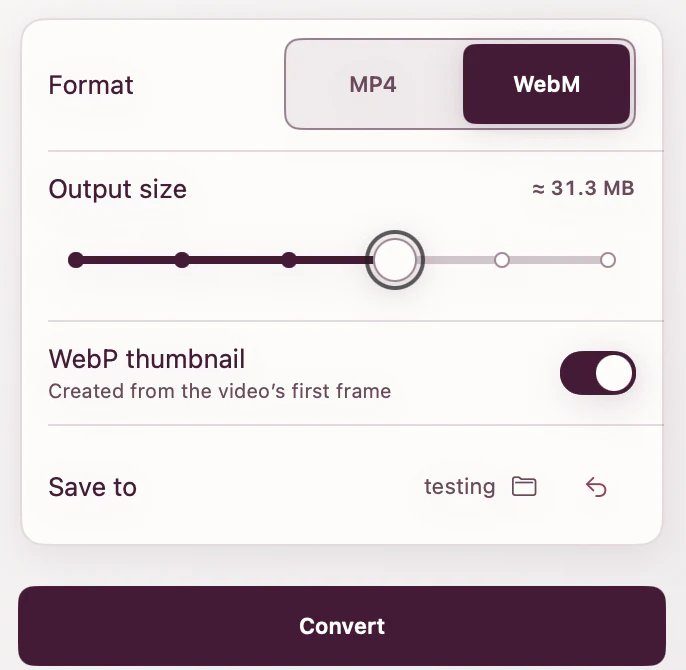
- Open ExportForWeb and choose a destination folder.
- Drop in the prepared source video.
- Select WebM or MP4 for the video export.
- Enable the optional WebP thumbnail.
- Run the export, then reveal the completed files in Finder.
- Open the WebP and confirm that it matches the video’s first frame and aspect ratio.
The source remains unchanged and conversion happens locally. If you already have the delivery video you need, keep it; the new video export can be treated as a working by-product while you use the generated WebP poster.
Use complete, resilient video HTML
A practical click-to-play player includes dimensions, a poster, explicit source types, and fallback content:
<video
  controls
  playsinline
  preload="metadata"
  poster="/media/product-tour-poster.webp"
  width="1280"
  height="720"
>
  <source src="/media/product-tour.webm" type="video/webm" />
  <source src="/media/product-tour.mp4" type="video/mp4" />
  <a href="/media/product-tour.mp4">Download the product tour</a>
</video>
The width and height reserve the player’s aspect ratio before video metadata arrives. Browsers try the nested sources in order, so put the preferred WebM first and the MP4 fallback second. For the format reasoning behind that order, read WebM vs MP4 for the web.
Choose loading behavior by placement
The preload attribute is a browser hint, not a command. MDN documents three useful values: none, metadata, and auto. Match the hint to the likelihood that a visitor will play the video.
| Placement | Starting point | Why |
|---|---|---|
| Below-the-fold case study | preload="none" | Avoid fetching video data before interest |
| Visible click-to-play demo | preload="metadata" | Fetch limited information before playback |
| Muted autoplay loop | Test the real autoplay path | Autoplay takes precedence over preload |
If the video is the large hero element, its poster can become the page’s Largest Contentful Paint candidate. The web.dev lazy-loading video guide recommends preloading an LCP poster with high fetch priority because fetchpriority cannot be placed directly on the poster attribute:
<link
  rel="preload"
  as="image"
  href="/media/product-tour-poster.webp"
  type="image/webp"
  fetchpriority="high"
/>
Preload selectively. Use this for a measured above-the-fold poster, not every video preview. Competing high-priority requests can make the page slower.
Keep the poster and video in the same frame
The poster is fitted into the video element’s display area. Use matching aspect ratios so the image does not appear cropped or letterboxed before playback. A small CSS baseline is usually enough:
.product-video {
  display: block;
  width: 100%;
  height: auto;
  aspect-ratio: 16 / 9;
  background: #171717;
  object-fit: cover;
}
Only use object-fit: cover when cropping the edges is acceptable. For screen recordings and interface demos, preserving the entire frame with contain may be safer.
Verify the result on the real page
- Load the page with the browser network panel open and confirm the WebP returns successfully.
- Throttle the connection and verify that the player shows the poster before playback.
- Play the video and watch for a visible jump between poster and first frame.
- Test the narrowest layout to catch unwanted cropping or unreadable details.
- Compare
noneandmetadatausing actual transferred bytes, not assumptions.
For the rest of the delivery workflow—compression, fallback formats, and file-size review—continue with how to export video for the web or the focused web video compression guide.
HTML video poster questions
Can the poster image be WebP?
Yes. The poster value is an image URL, and WebP works as the preview in browsers that support the image format. Keep the file on the same delivery path as your other web assets and verify it in the browsers you support.
Does a poster stop the video from downloading?
No. The poster controls the preview; preload, autoplay, browser behavior, and user interaction affect video loading. Use preload="none" when you want to suggest that no video data be fetched before playback.
Why is my video poster black?
If the generated WebP is black, the source probably opens on a black frame or fade. Trim or revise the source so its first frame contains the intended preview, then export again.
Should the poster have the same dimensions as the video?
It should at least use the same aspect ratio. Then size the delivery asset for the largest rendered player you actually need and inspect it at that size.
[ ABOUT EXPORTFORWEB ]
Quick product questions
Is ExportForWeb free?
Yes. ExportForWeb is a free download on the Mac App Store, and every conversion feature is free to use, with no subscription or paid tier.
Do my files leave my Mac?
No. Conversion happens entirely on your Mac. Your source media and finished exports are never uploaded to us or sent to a cloud conversion service.
What can I export?
Videos become WebM or MP4, with an optional first-frame WebP poster. JPEG, PNG, HEIC, HEIF, TIFF, BMP, and WebP images become WebP.
[ FREE & PRIVATE ]
Make the next export web-ready—privately, for free.
Every feature is free, with no subscription or paid tier. Conversion stays on your Mac, so your media is never uploaded and no account is required.
Download free